
Plant Spacing Calculator
Estimate how many plants fit in an area using landscape, crop-row, or square-foot spacing.
A garden can look spacious before planting but become overcrowded once seedlings reach their mature size. The Plant Spacing Calculator helps you plan the layout beforehand by estimating how many plants fit in a landscape bed, raised bed, crop-row area, acre, or square-foot garden.
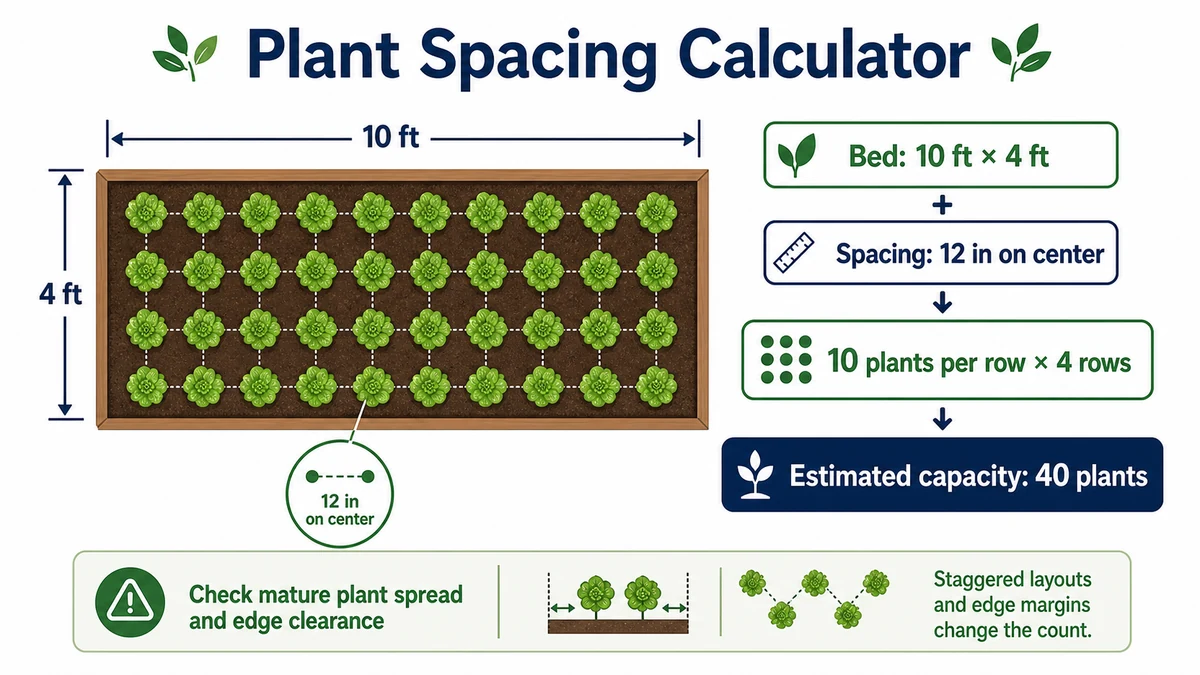
Enter the usable planting area, choose a layout, and provide the recommended distance between plants. The calculator returns an estimated plant quantity and the growing area assigned to each plant.
Important: The result is a mathematical planning estimate. Always check the mature spacing recommendation for the exact species and variety you intend to grow.
What the Plant Spacing Calculator Estimates
The calculator supports several common planting methods:
- Landscape bed spacing: Square or triangular arrangements for flowers, shrubs, ground covers, and mass planting
- Crop-row spacing: Separate distances between rows and between plants within each row
- Square-foot gardening: Dense grid layouts commonly used in raised beds
The results include the estimated number of plants and the area occupied by each plant under the selected layout.
How to Use the Plant Spacing Calculator
- Select landscape bed, crop-row, or square-foot gardening mode.
- Enter the usable planting area.
- Select the correct unit for the area.
- Enter the recommended distance between plants.
- For crop rows, also enter the distance between rows.
- Select square or triangular spacing when that option is available.
- Click Calculate to view the estimated plant count.
- Use Reset before starting a different calculation.
Use mature spacing from a seed packet, plant label, nursery guide, agricultural extension publication, or another reliable plant-specific source. Do not base the spacing on the current size of a young seedling.
Plant Spacing Calculator Formulas
The general calculation divides the usable planting area by the growing area required for one plant:
Plants needed = total usable area ÷ area per plant
The area assigned to each plant depends on the selected planting pattern.
Square or Grid Spacing
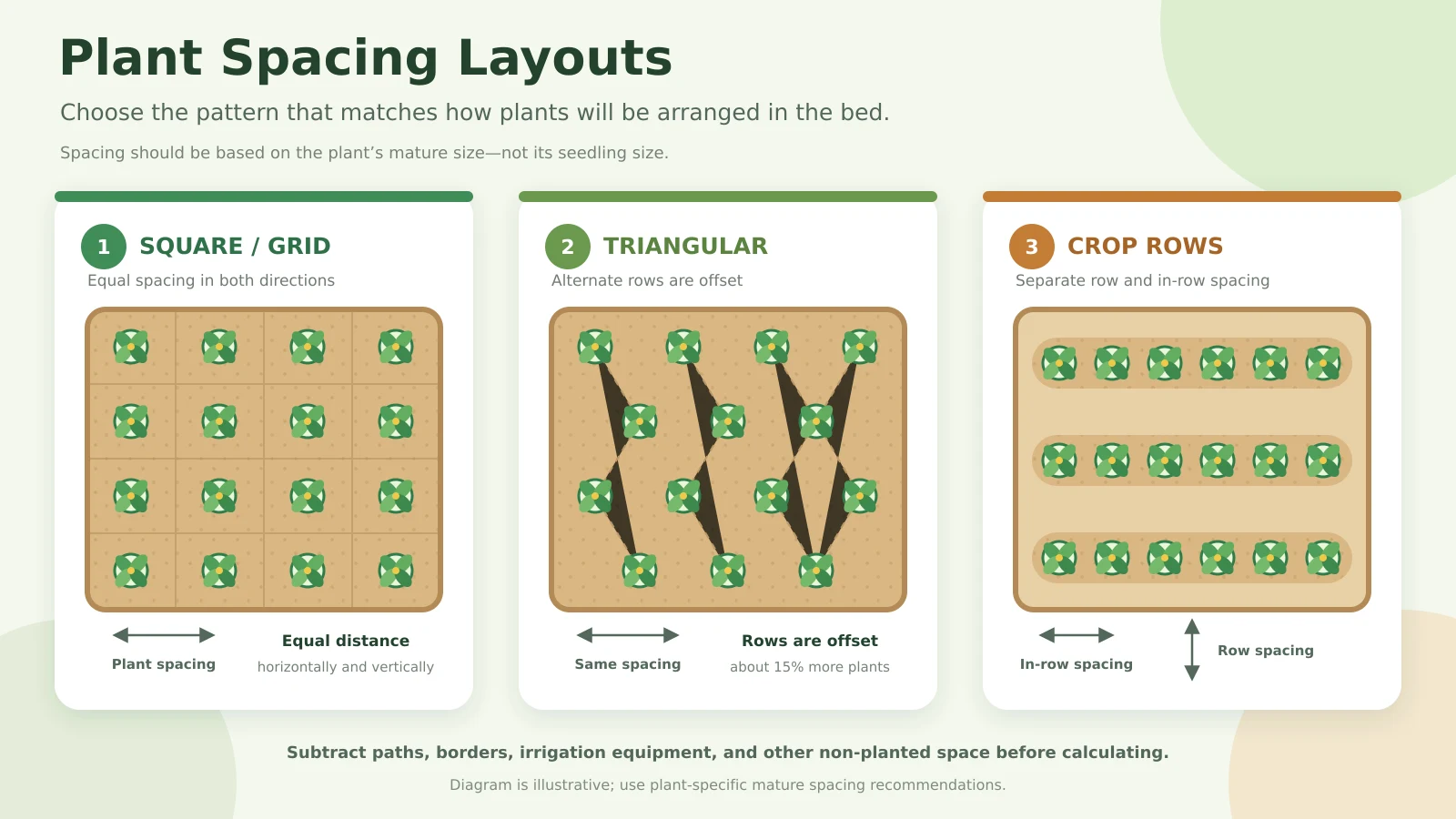
Square spacing places plants in straight rows and columns with an equal distance in each direction.
Area per plant = plant spacing × plant spacing
Plants needed = total usable area ÷ plant spacing²
For example, a plant spaced 12 inches apart in both directions occupies approximately one square foot.
Triangular or Staggered Spacing
A triangular pattern offsets alternate rows while maintaining the selected distance between neighbouring plants.
Area per plant = plant spacing² × 0.866
Plants needed = total usable area ÷ area per plant
Because 0.866 is smaller than 1, triangular spacing can mathematically accommodate approximately 15% more plants than square spacing at the same plant-to-plant distance.
This denser arrangement may be useful for ground covers or mass planting, but it can make weeding, pruning, irrigation, and harvesting less convenient.
Crop-Row Spacing
Crop-row mode uses one measurement for the distance between rows and another for the distance between plants within a row.
Area per plant = row spacing × in-row spacing
Plants needed = total usable area ÷ area per plant
If rows are 2 feet apart and plants are 1 foot apart within each row, every plant occupies approximately 2 square feet.
Square-Foot Gardening
Square-foot gardening divides a raised bed into one-square-foot sections. Common mathematical grid arrangements include:
- 12-inch spacing: Approximately 1 plant per square foot
- 6-inch spacing: Approximately 4 plants per square foot
- 4-inch spacing: Approximately 9 plants per square foot
- 3-inch spacing: Approximately 16 plants per square foot
These figures describe grid density only. Large vegetables, spreading plants, and varieties with extensive root systems may need considerably more room.
Worked Garden Spacing Example
Suppose you have a 100-square-foot garden bed and want to use 12-inch square spacing.
Step 1: Convert the spacing
12 inches = 1 foot
Step 2: Calculate the area per plant
1 foot × 1 foot = 1 square foot per plant
Step 3: Calculate the plant quantity
100 square feet ÷ 1 square foot = 100 plants
The Plant Spacing Calculator therefore estimates that the bed can mathematically hold 100 plants. The practical quantity may be lower after allowing for bed edges, pathways, supports, irrigation equipment, and maintenance access.
Calculating an Irregular Garden Bed
For an irregular planting area, divide the bed into smaller rectangles, squares, circles, or triangles. Calculate the area of each section and add the results together.
Subtract any space occupied by:
- Paths and stepping stones
- Bed borders and edging
- Trellises and plant supports
- Irrigation equipment
- Utility boxes or structures
- Areas that cannot be planted
You can use the Area Calculator to measure the smaller sections before entering the combined usable area.
Choosing the Correct Plant Spacing
Planting more closely does not always produce a better garden. Crowded plants may compete for sunlight, water, nutrients, airflow, and root space. University extension guidance recommends following plant-specific spacing information because excessive crowding can affect plant health and yield.
Consider these factors when choosing a spacing value:
- Mature width and growth habit
- Root spread
- Available sunlight
- Climate and humidity
- Air circulation and disease susceptibility
- Soil fertility
- Irrigation method
- Pruning and harvesting access
- Trellises or other supports
Wider spacing often improves access and airflow, while closer spacing may provide quicker ground coverage. The appropriate balance depends on the plant and how the area will be maintained.
Understanding the Results
Plants needed is the mathematical number of plants that fit inside the entered usable area.
Area per plant is the growing space assigned to each plant under the chosen spacing pattern.
If the result includes part of a plant, round down when maintaining the recommended spacing is the priority. You may purchase a few additional plants as replacements without placing all of them in the calculated area.
Planning Soil and Mulch
After calculating the number of plants, estimate the materials required to prepare and protect the bed:
- Use the Topsoil Calculator to estimate soil volume and bags.
- Use the Mulch Calculator to estimate mulch volume, bags, and cost.
Assumptions and Limitations
- The entered area is assumed to be entirely usable unless you subtract non-planted sections.
- The calculator assumes plants follow the selected square, triangular, row, or square-foot pattern.
- It does not determine the correct spacing for a particular species or variety.
- It does not account for mature spread, pruning, trellising, soil fertility, or irrigation method.
- Bed edges and irregular boundaries may reduce the practical plant count.
- The result does not predict plant survival, crop yield, disease risk, or harvest quality.
Commercial crops, orchards, vineyards, and permanent landscapes require plant-specific spacing plans that account for machinery, headlands, access roads, pollination, pruning, and local growing conditions.
Plant Spacing Calculator FAQs
How do I know what plant spacing to enter?
Check the seed packet, nursery label, plant-specific growing guide, or local agricultural extension recommendations. Use the mature spacing rather than the current seedling width.
Should I round the number of plants up or down?
Round down when you do not want to exceed the available area or reduce the recommended spacing. You can purchase additional plants separately as replacements.
Does triangular spacing fit more plants?
Yes. A triangular arrangement mathematically fits approximately 15% more plants than square spacing when both layouts use the same plant-to-plant distance.
Does the result include garden pathways?
No. Subtract pathways, borders, equipment lanes, and other non-planted sections before entering the usable area.
Can I calculate plants per acre?
Yes. Enter the usable acreage and provide the row and in-row spacing. For agricultural use, subtract access roads, drainage sections, machinery lanes, and headlands first.
Why might I need fewer plants than the result shows?
Bed edges, irregular corners, mature plant size, pathways, irrigation systems, trellises, and maintenance access can all reduce the practical quantity.